
How to Choose a TV or Monitor for Console Gaming
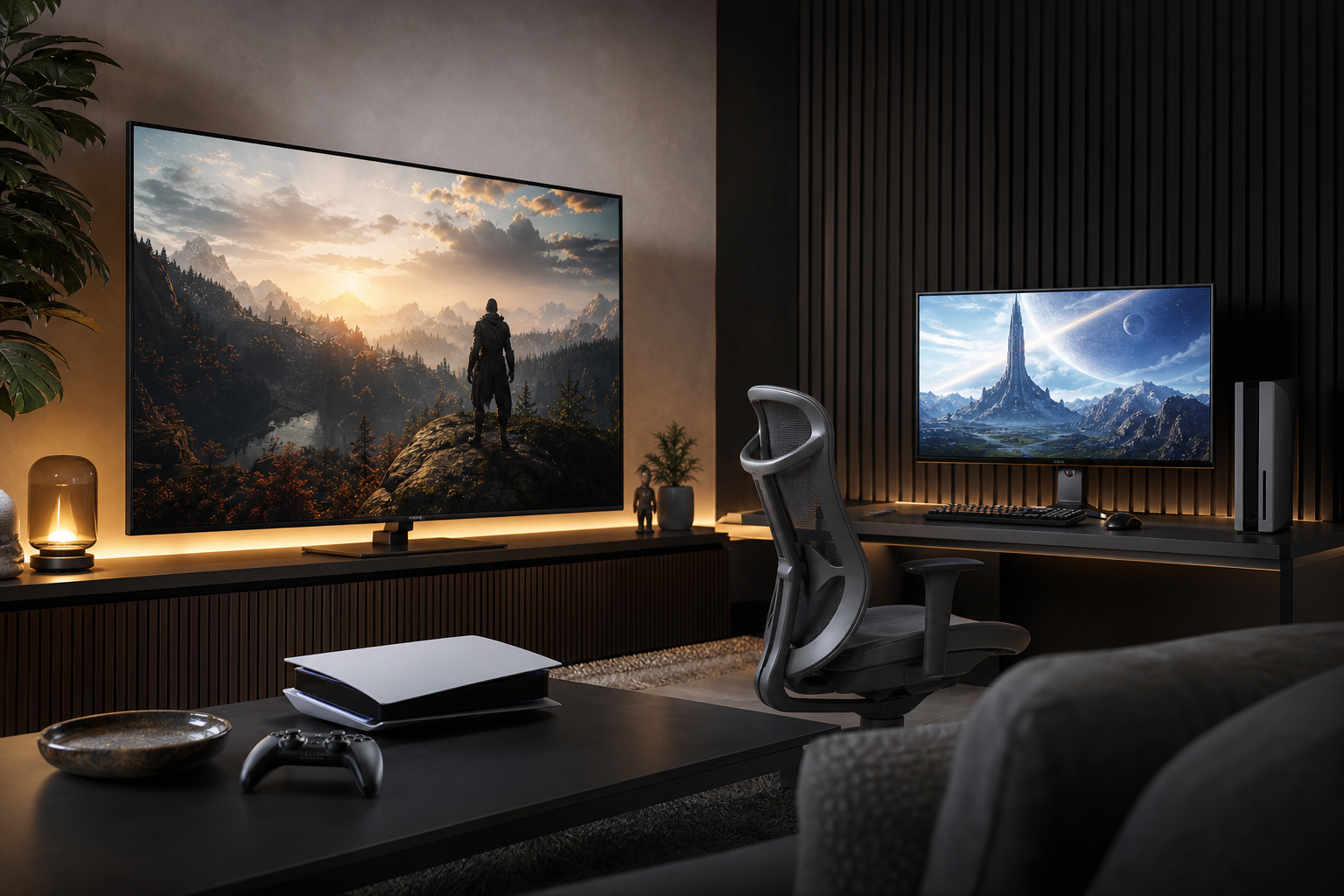
Console gaming monitor is worth understanding before your next technology purchase. A good console gaming display should make games look clear, respond quickly and fit comfortably into the space where you play. That does not always mean buying the biggest television or the fastest gaming monitor. The best choice depends on your console, the games you play, your seating distance and which features you will actually use.
Resolution, refresh rate, HDR and HDMI specifications are closely related, but they solve different problems. Use the guide below to separate the important details from the marketing shorthand.
Start with your console and games
Before comparing screens, consider the type of console gaming you do most often. Many current consoles support high-resolution output and fast refresh modes, but individual games can offer different graphics settings. A title may prioritise detailed visuals at a lower frame rate, while another may offer a performance mode with smoother movement.
This makes a display with some headroom useful, but it also means you should avoid paying for capabilities your setup cannot use. A screen’s maximum refresh rate matters less if your console and preferred games usually run at lower frame rates. Similarly, a premium HDR panel may be wasted in a bright room where reflections obscure dark scenes.
- Story-driven and cinematic games: prioritise contrast, HDR performance, resolution and screen size.
- Competitive shooters and racing games: prioritise low input lag, smooth refresh, motion handling and a comfortable viewing position.
- Mixed-use gaming: look for a balanced 4K display with useful gaming presets, strong connectivity and sensible smart-TV or desktop features.
Resolution: 4K is the practical starting point
Resolution describes the number of pixels used to form the picture. A 4K screen has substantially more pixels than a 1080p display, producing sharper text, finer environmental detail and cleaner-looking edges when viewed at an appropriate distance.
For a modern living-room console setup, 4K is generally the most straightforward choice. It suits larger screens and is widely supported by current console hardware and games. It is also a useful fit for streaming films and television, making a 4K TV more versatile than a display chosen only for gaming.
1440p monitors occupy a useful middle ground. They can look sharp on smaller screens and may cost less than comparable 4K models. However, console compatibility varies, so check that the specific console supports the monitor’s resolution and that features such as high refresh rate and HDR work together at the desired setting.
1080p remains reasonable for a smaller secondary screen or a modest budget, especially when playing from close range. It is less compelling for a large TV, where the lower pixel density can make fine detail look softer.
Refresh rate and frame rate are not the same thing
Refresh rate is how often a display can update its image, measured in hertz (Hz). Frame rate is how many frames the console or game produces per second. A high-refresh screen cannot create extra game frames on its own, but it can display supported higher-frame-rate output more smoothly.
For many console buyers, a 120Hz-capable display is a worthwhile feature to consider. It can support smoother performance modes in compatible games and may make menus, camera movement and fast action feel more fluid. The benefit is most noticeable in games designed to take advantage of higher frame rates.
Do not choose a screen on the refresh-rate number alone. Check whether the quoted rate is available at the resolution you intend to use. Some displays offer their highest refresh rate only at a lower resolution, while others may limit HDR or variable refresh features when certain inputs are active.
Variable refresh rate
Variable refresh rate (VRR) allows the display to adjust its refresh timing to the console’s changing frame rate. This can reduce visible tearing and make uneven performance appear smoother. For compatible console setups, VRR is a useful comfort feature, particularly in graphically demanding games.
Look for clear compatibility information rather than assuming that any mention of VRR guarantees the same experience. Console support, display firmware and the HDMI connection all play a part.
HDR: look beyond the label
High Dynamic Range (HDR) is intended to show a wider range between very dark and very bright parts of an image, with more nuanced highlights and colour. In a well-suited game, bright lights, reflections and sunsets can appear more convincing without losing detail in darker areas.
HDR quality depends heavily on the panel itself. Important factors include contrast, peak brightness, local dimming and how accurately the display manages bright and dark areas. A screen that accepts an HDR signal but has limited brightness or weak contrast may deliver only a modest improvement.
OLED displays are known for strong per-pixel black levels and excellent contrast. Many LED and mini-LED televisions can offer high brightness and effective contrast through backlighting and local dimming. Each approach has trade-offs, including room brightness, viewing habits, price and the importance of avoiding static images for long periods.
When comparing models, read the full display specifications and reviews rather than treating an HDR badge as a guarantee of image quality. A good SDR picture and effective game mode are still important if you often play in daytime or with HDR disabled.
HDMI features can determine what actually works
HDMI is the connection carrying the console’s picture and sound to the screen. The version and implementation matter because high-resolution, high-refresh gaming can require more bandwidth than basic video output.
For a modern console setup, HDMI 2.1 is worth considering if you want to use combinations such as 4K resolution, a 120Hz refresh rate, HDR and VRR. Make sure the display has enough suitable HDMI ports for your equipment. A single compatible port can become inconvenient if it must also serve a soundbar, media player or another console.
- Check the port count: confirm how many inputs support the gaming features you want, not just how many HDMI sockets the product has.
- Check bandwidth details: manufacturers may specify different capabilities for different ports.
- Check eARC: this can simplify sending higher-quality audio from a TV to a compatible soundbar or receiver.
- Check ALLM: Auto Low Latency Mode can switch the display into a lower-latency gaming mode when supported.
- Check cable requirements: higher-bandwidth features may require an appropriate certified HDMI cable.
For a monitor, also consider whether its HDMI inputs support the full resolution and refresh combination you need. A DisplayPort connection may offer more flexibility for a PC, but it does not replace checking console compatibility.
Choosing the right screen size
Screen size should match viewing distance. A large TV can create a more immersive experience from a sofa, but it may be uncomfortable at a desk. A smaller monitor can look crisp up close while occupying less space.
For living-room play, a 4K TV in a size that fills your field of view without forcing you to move your head is usually more useful than simply choosing the largest available panel. For desk gaming, a monitor around the mid-sized range is often easier to position, although personal preference and desk depth matter more than a fixed rule.
Consider the following before buying:
- Measure the distance between your usual seating position and the screen.
- Check the stand width, height adjustment and depth, especially on a desk.
- Leave room for speakers, a soundbar, ventilation and cable bends.
- Think about whether the display will also be used for films, browsing or split-screen play.
TV or monitor: which is better for console gaming?
Choose a TV if you want a shared, cinematic setup
A TV is usually the better fit for sofa gaming, larger screen sizes and mixed entertainment. It may offer stronger built-in speakers, more convenient streaming features and better options for displaying HDR content. TVs also tend to provide a broader choice of panel types and screen sizes.
Pay attention to game mode input lag, HDMI capabilities and whether all of the gaming functions remain available when HDR and high refresh rate are enabled.
Choose a monitor if you play close to the screen
A monitor makes sense for desk-based gaming, limited space and users who prefer a focused setup. It is easier to position at a short viewing distance and often includes an adjustable stand. Gaming monitors may provide detailed control over refresh, response and picture settings.
Some monitors have weaker built-in audio, fewer HDMI inputs or less capable HDR than similarly priced TVs. You may also need separate speakers or headphones, so include those costs and practicalities in the comparison.
Other details worth checking
Input lag: This affects how quickly an input appears on screen. Look for independent measurements where available, especially if you play competitive games.
Response time and motion handling: A fast quoted response time does not automatically guarantee clean motion. Overdrive settings can create unwanted trails or bright artefacts if used too aggressively.
Panel finish and room lighting: Glossy screens can look vivid but may reflect windows and lamps. Matte finishes reduce reflections but can affect perceived contrast and image clarity.
Sound: Check whether the TV’s speakers are sufficient or whether you will use headphones, a soundbar or an AV receiver. Confirm the audio connections you need before buying.
Warranty and software: Firmware updates can affect compatibility and features. A clear warranty and reliable manufacturer support are valuable for a display expected to last several years.
A simple buying checklist
- Choose 4K for most modern living-room console setups.
- Consider 120Hz if compatible games and smoother performance matter to you.
- Look for VRR and ALLM when your console supports them.
- Compare real HDR brightness and contrast performance, not just HDR branding.
- Confirm the HDMI ports support your chosen resolution, refresh rate and HDR combination.
- Match screen size to viewing distance, furniture and desk space.
- Check input lag, motion handling, sound and warranty before making a final decision.
The best display is the one that fits your setup
Console buyers do not need every premium specification. A balanced display with the right resolution, useful refresh rate, dependable HDR and suitable HDMI support will usually deliver a better experience than a screen chosen around one headline number.
Start with where you play and what you play most. From there, decide whether you need the cinematic scale of a TV or the close-up precision of a monitor, then confirm that the ports and gaming modes support your console’s output. That approach keeps the decision practical and helps ensure the display remains useful as your gaming setup changes.
Explore more technology reviews, comparisons and buying guides on Compare2Shop.